

Note – if you don’t have a Jobber CRM trial set up, get one here!
This blog post will get you through the basics of your Company Portal setup by showing you the Jobber CRM Create a winning quote screen. When customers ask for a quote prior to beginning work (common with new equipment or other major projects), Jobber CRM can help you quote quicker, more accurately, and with a greater chance of winning the work! We’ll look at the final feature “Create a website for your business” in an upcoming segment.
The Jobber CRM welcome screen
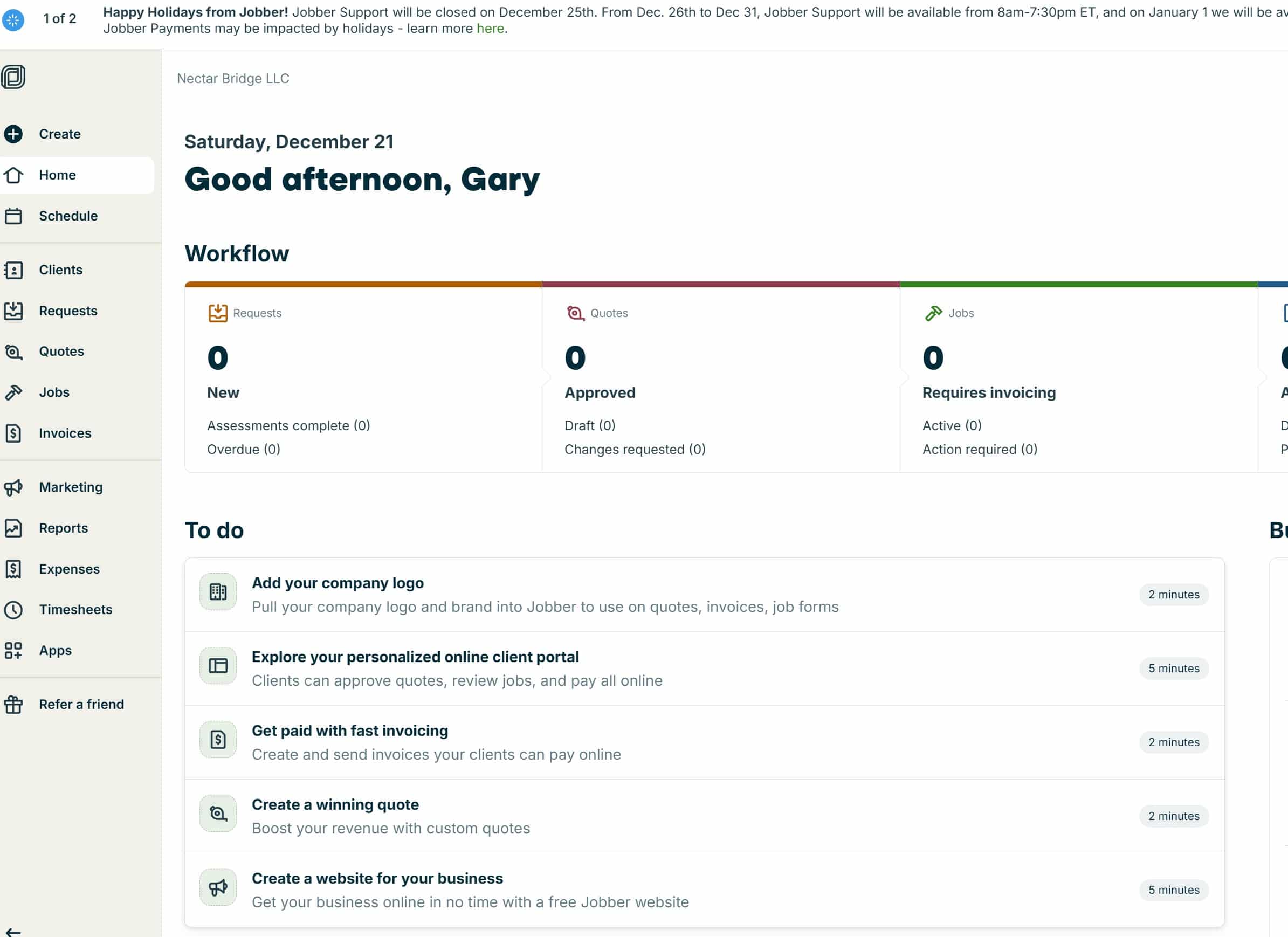
When you start your Jobber CRM demo account, you’ll see a list of things to do, along with some (highly optimistic) time estimates.
We’re focusing on item four in the Jobber CRM checklist: Create a winning quote
Note: Unlike the first three items on the checklist, “create a winning quote” has the endearing trait of disappearing once you click into it once. So if you’re trying to figure out how to get back to quoting, have no fear – just look at the left column and find the “Quotes” menu item – you’ll get right into the same workflow. Click “New Quote” (the green button on the right of the screen) if needed.
Either way you get here, you’ll see a screen that looks something like this:
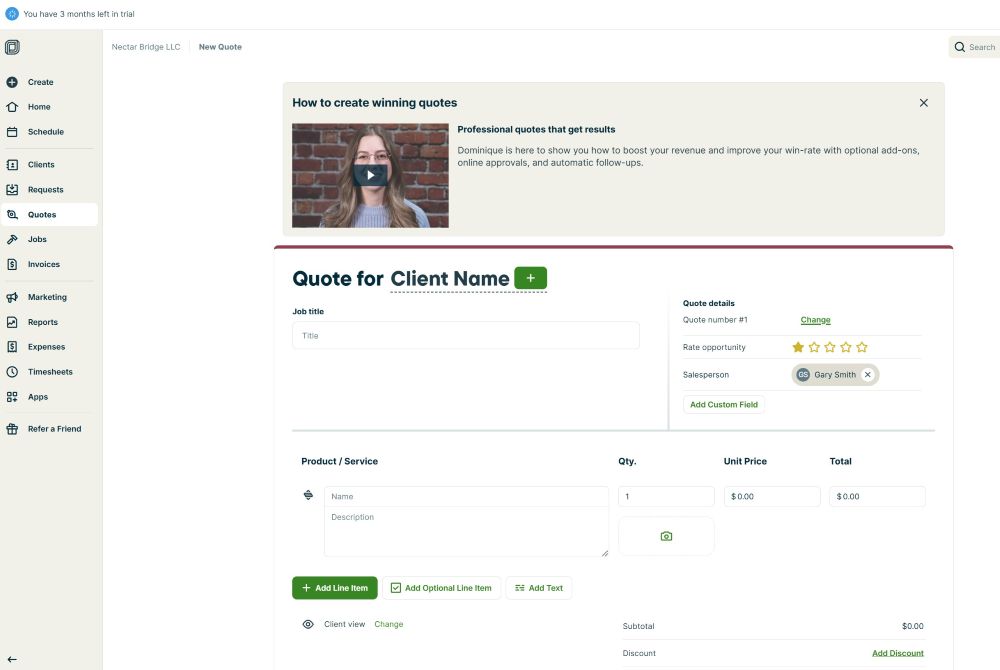
Have you imported customers or started using the scheduling features of Jobber CRM? If not, we may be a little ahead of ourselves. But you can step through the quote creation dialogue and see what a quote looks like. The quote screen resembles the invoicing screen in many respects (that’s not coincidence, since an estimate anticipates the invoice for a job – you just have to sell it first!)
There is a video from Jobber at the top of the screen that you may find useful to learn more about the estimating process.
Before sending live quotes to real customers, it would be a good idea to have your payment information set up so that you can accept payments, since you will likely want to get a deposit online before beginning actual work. We’ll talk more about that in a future segment.
Just like the invoicing process we discussed in the last article, you’ll either need to have customers and products loaded or add them as you go.
We’ll need to do more to make full use of the Jobber create a quote function
So far, we need to go into in more depth on two more things after we complete our tour of the initial setup of Jobber CRM:
- Setting up the labor and parts items as mentioned above.
- Setting up the payment options for Jobber CRM.
To do all this right takes more than two minutes! Contact us if you have any questions or if we can help you choose and implement home services management software like Jobber CRM.