

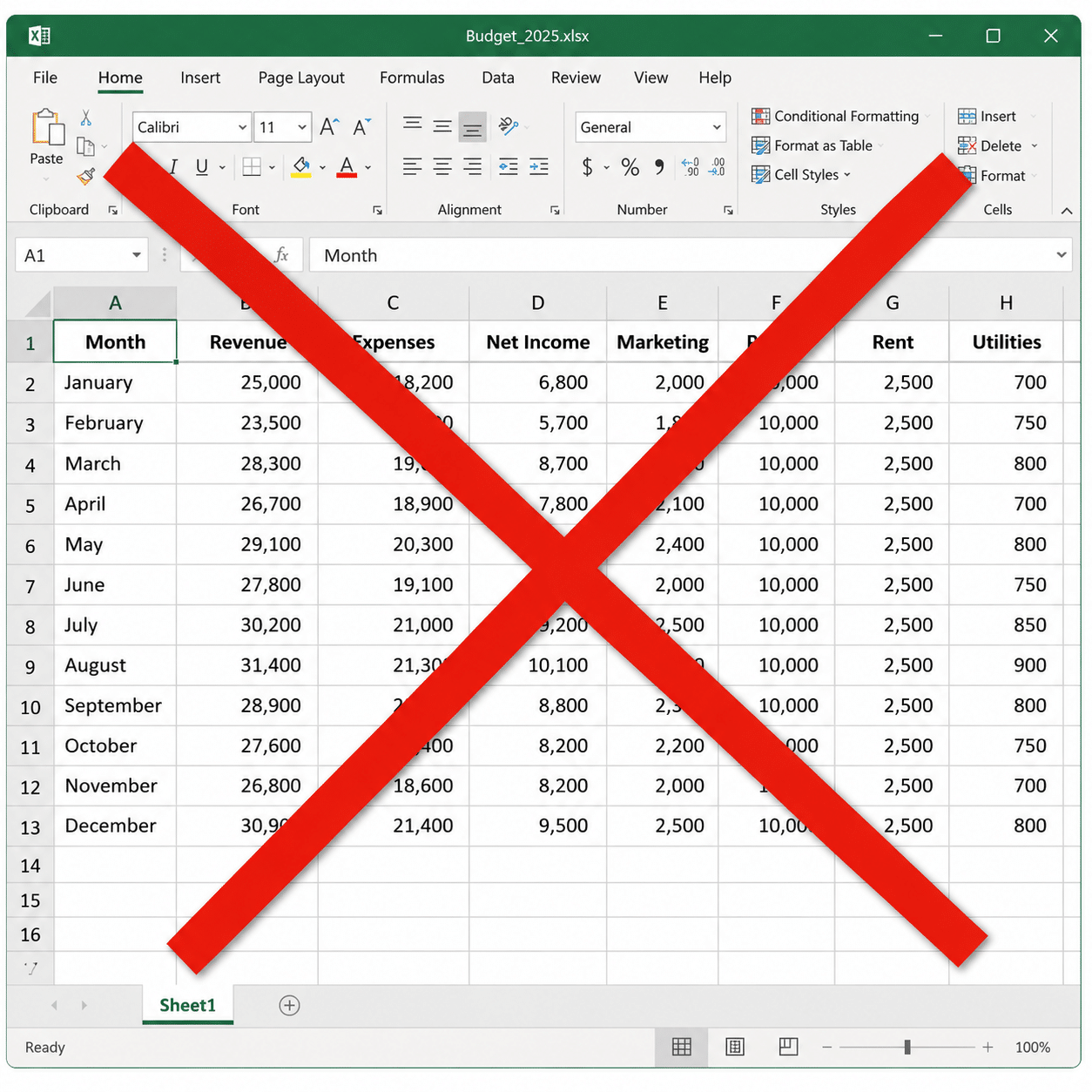
If you’re reading this about QuickBooks Online (QBO), you’re probably in one of two places:
- You’ve outgrown spreadsheets or an old system and you’re ready for something real.
- You’re already in QuickBooks, but you don’t trust it. The reports don’t match the bank. The categories are a junk drawer. Nobody’s sure what’s “right,” so nothing gets fixed.
Either way, here’s the plain truth: QuickBooks doesn’t magically give you clean books. A clean setup and a clean process do.
This guide gives you a balanced path—what to do step-by-step, plus the common mistakes that turn a “simple switch” into months of cleanup.
If you want a second set of eyes on your current setup (or want to plan a clean transition into QBO), you can contact us and we’ll help you figure out the next right step.
What does “doing the transition right” actually mean?
A clean QBO setup should get you to three outcomes:
- Your bank and credit cards reconcile every month.
- Your reports make sense (Profit & Loss, Balance Sheet, cash flow picture).
- Your team can use it without breaking it.
If you’re missing any of those, you don’t really have “books.” You have an expensive spreadsheet that makes you feel behind, or a tool you’re using for part of your business, like creating invoices or writing checks.
When is it time to switch from spreadsheets or old software to QBO?
You may not need QuickBooks Online the day you open your doors. But spreadsheets start failing when any of these are true:
- You have more than one person touching the money (owner + office manager + spouse + bookkeeper).
- You’re sending enough invoices that you can’t keep up with who owes what.
- You’re paying enough vendors that “we’ll sort it later” turns into missed bills.
- You’re trying to answer basic questions like:
- “Are we actually profitable?”
- “Why is the bank balance different than what I think we made?”
- “Where did the cash go?”
Spreadsheets can track numbers. They don’t enforce a process. That’s the gap.
What should you fix before you move anything into QBO?
Here’s where most people rush—and regret it.
Before you import, migrate, or start connecting bank feeds, get clear on what exists in the real world.
1) List every account that touches money
- Business checking
- Business savings
- Credit cards
- Loans/lines of credit
- Payroll accounts (if separate)
- Merchant processors (Stripe, Square, PayPal, etc.)
If it moves money, it needs a home.
2) List all Accounts Receivable and Accounts Payable
Meaning:
- Who owes you money (open invoices)?
- Who you owe (unpaid bills)?
Make a clean list and make a plan to enter these into QuickBooks. If you skip this, you’ll start QBO with “clean” books that are lying to you from day one.
3) Clean up the customer/vendor lists (at least a little)
If your spreadsheet has “Home Depot,” “Home Depot #2,” “HD,” and “Depot,” you’re about to import a mess.
You don’t have to be perfect, but you do need to be intentional.
How should you approach chart of accounts setup so reports don’t become useless?
A chart of accounts sounds boring until it ruins your life.
Here’s the rule: Your chart of accounts should help you make decisions. Not impress a CPA. Not track every $12 purchase in its own category.
What a “bad” chart of accounts looks like
- 86 expense accounts
- unclear names (stuff like “Supplies,” “Materials,” “Shop Supplies,” “Office Supplies,” “Misc Supplies”)
- “Ask My Accountant” used as a dumping ground
- random categories made by whoever entered it that day
Result: your Profit & Loss becomes noise.
What a “good” chart of accounts looks like
- simple, consistent categories
- enough detail to see where money is going
- not so much detail that the team can’t code transactions correctly
Illustrative example: If you want to know whether you’re profitable on jobs, you may need accounts that separate labor, materials, and subcontractors. But you probably don’t need separate accounts for “gloves,” “screws,” and “shop towels.”
The question to ask before adding an account
“Will I make a decision based on this line item?”
If the answer is no, don’t add it.
How do you pick a go-live date for QuickBooks Online?
Picking a go-live date is where people either stay clean or stay confused.
Best case: start on the first day of a month (or year)
January 1 is the cleanest if you can do it. But don’t wait six months just to hit January if you’re bleeding.
If you’re mid-year, use a clean monthly cutover
Pick the first day of a month and commit.
Then set these expectations:
- the old system is “history”
- QBO is “today forward”
- you may still reference the old system for lookbacks, but you stop entering new transactions there
Don’t “half switch”
Half switching means:
- you invoice in QBO
- but you still track bills in spreadsheets
- and you’re still paying vendors from email chains
- and nobody reconciles anything
That’s how you end up with a Frankenstein system you can’t trust.
How does Nectar Bridge help with QuickBooks Online setup and cleanup?
Most owners don’t need more software advice. They need someone who will:
- Look at the real situation (how you invoice, how you get paid, how bills get approved, how bank deposits work).
- Fix the setup so the numbers are believable (chart of accounts, opening balances, integrations, reconciliations).
- Build a simple process your team can repeat so it stays clean after you’re done.
That can look like helping you transition into QBO, doing cleanup work on a bad setup, or training your team so you’re not re-learning the same lessons every few months.
If you’re not sure what you need yet, that’s fine. Start by telling us what system you’re using now and what feels broken. Contact us and we’ll help you map the next right steps.
Should you import data into QBO or start fresh?
This depends on your reality, not your ideal.
Starting fresh is often smarter than people think
If your old data is messy, importing it doesn’t save time. It just imports the mess.
Starting fresh can work well when:
- you’re okay keeping historical reports in the old system
- you mainly need clean books moving forward
- you’re willing to set correct opening balances
Importing makes sense when you truly need continuity
Importing can be worth it if:
- you need customer history in one system
- you need open invoices/bills brought over
- your old software data is clean enough to trust
Either way, the goal is the same: you want QBO to tell the truth.
What are the most common QuickBooks Online setup mistakes that create bad numbers?
These are the big ones we see over and over.
1) Wrong opening balances
If opening balances are wrong, everything downstream is wrong. Period.
2) Using bank feeds with no rules and no process
Bank feeds are a tool. They are not bookkeeping.
If you’re clicking “Add” on everything without understanding what it’s doing, you’re not saving time—you’re building bad data faster. AI is great, but QuickBooks doesn’t know why you bought items from Amazon. Generally it assumes that it’s the same category as last time.
3) Uncategorized transactions piling up
Uncategorized is like trash in your kitchen.
You can ignore it for a week. Then it stinks. Then it attracts problems.
4) Duplicate income or duplicate expenses from integrations
This happens when payment tools, invoicing tools, or field service tools sync the wrong way—or sync twice.
If your sales look too high (or expenses look doubled), don’t assume you’re suddenly doing great (or horrible). Check the sync.
5) No monthly reconciliation
If you’re not reconciling monthly, you’re guessing.
Reconciliation is what turns “we think the books are right” into “we know they’re right.”
How do you train new users so your QBO stays clean?
Training is where good setups go to die.
Most owners train like this:
- “Here’s the login.”
- “Just do what I do.”
- “If it breaks, we’ll fix it later.”
Later becomes never.
Train by role (not by features)
- Owner: how to read reports, what to look for, how to spot problems early
- Office/admin: invoicing, receiving payments, coding transactions, attaching receipts
- Bookkeeper/accounting support: reconciliation, monthly close, reporting, cleanup rules
Document the “rules of the road”
A simple one-page playbook prevents 80% of mess:
- which accounts to use for common purchases
- when to create bills vs just enter expenses
- how to handle owner draws and reimbursements
- what gets coded where (and what never should)
If you don’t write it down, you’ll keep paying for retraining.
What should you review in the first 30–60 days after go-live?
The first two months tell you whether your system is staying clean.
Weekly checks (10 minutes)
- Are there uncategorized transactions stacking up?
- Are bank feed matches making sense?
- Are invoices and deposits lining up?
Monthly checks (non-negotiable)
- Reconcile bank and credit cards
- Run a Profit & Loss and Balance Sheet
- Ask: “Does this pass the sniff test?”
If the numbers don’t pass the sniff test, don’t ignore it. That’s how “small errors” become six months of cleanup work.
Conclusion: clean books don’t happen by accident
If you take nothing else from this, take this:
- QuickBooks Online is a tool.
- Setup is the foundation.
- Process is what keeps it clean.
If you’re switching from spreadsheets, don’t rush. A little planning saves a lot of cleanup.
If you’re already in QBO but you don’t trust the numbers, don’t beat yourself up. It’s common. But it does need to be fixed—because you can’t run a business on numbers you don’t believe.
If you want a second set of eyes on your current setup—or you want to plan a clean transition into QBO—start with a conversation. Tell us what you’re working with and where it feels messy, and we’ll help you map the next right steps. Contact us and we’ll get you pointed the right direction.