
Note – if you don’t have a Jobber CRM trial set up, get one here!
Jobber CRM, like any SaaS software environment, starts out with a whole lot of blanks to fill in with your company info so you can get started with it. Let’s dive in and take a look at how to do that! This blog post will get you through the basics of your Company Branding page (labeled “Add your company logo”), and we’ll look at more features in upcoming segments.
The Jobber CRM welcome screen
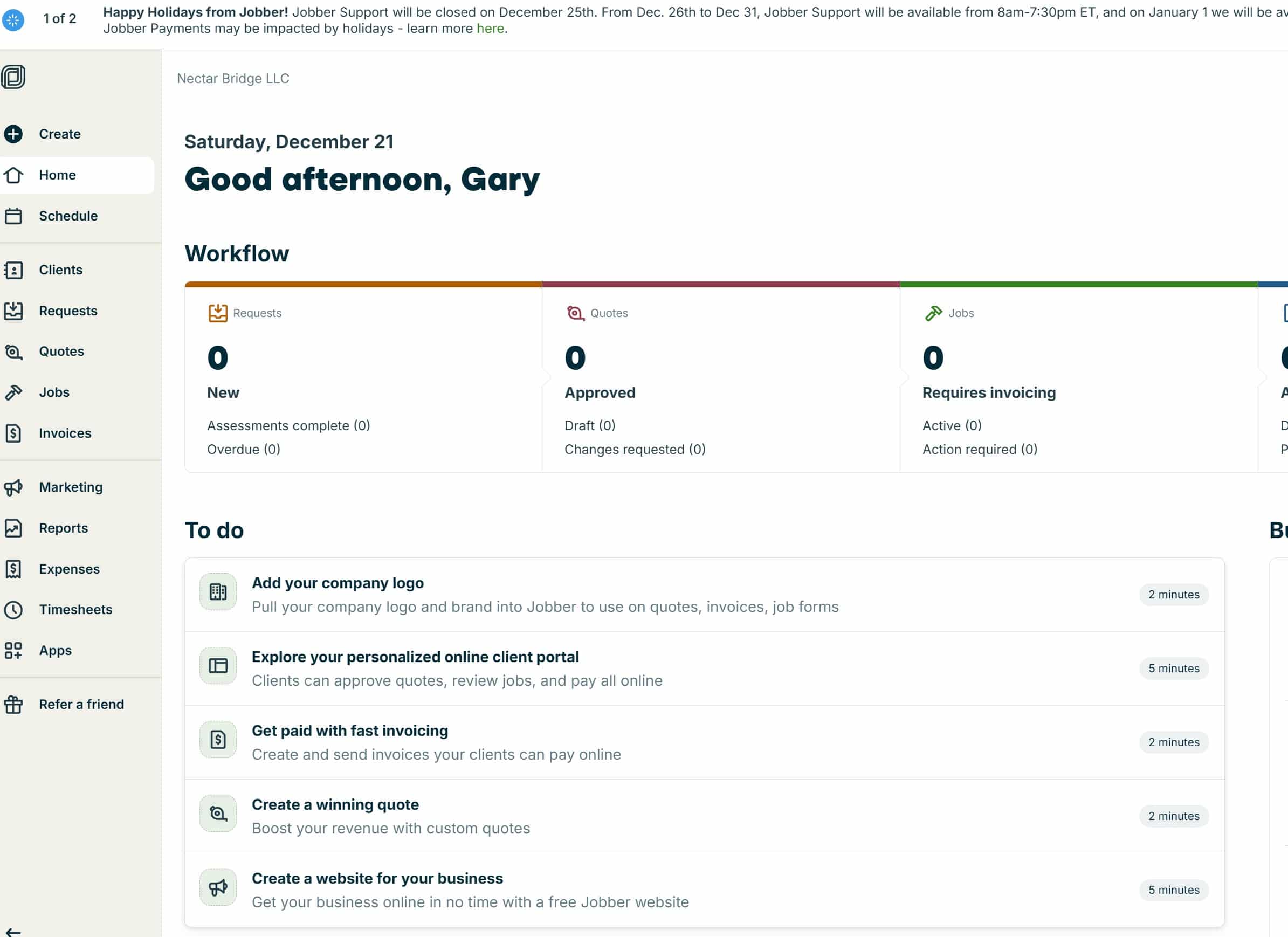
When you start your Jobber CRM demo account, you’ll see a list of things to do, along with some (highly optimistic) time estimates.
Add your company logo
There’s more to this section than putting your logo in there. It also covers your social media handles. If you don’t have a logo, your company name will be presented as plain text, but it’s a good idea to establish some branding for your home service business. This is a step you can come back to later
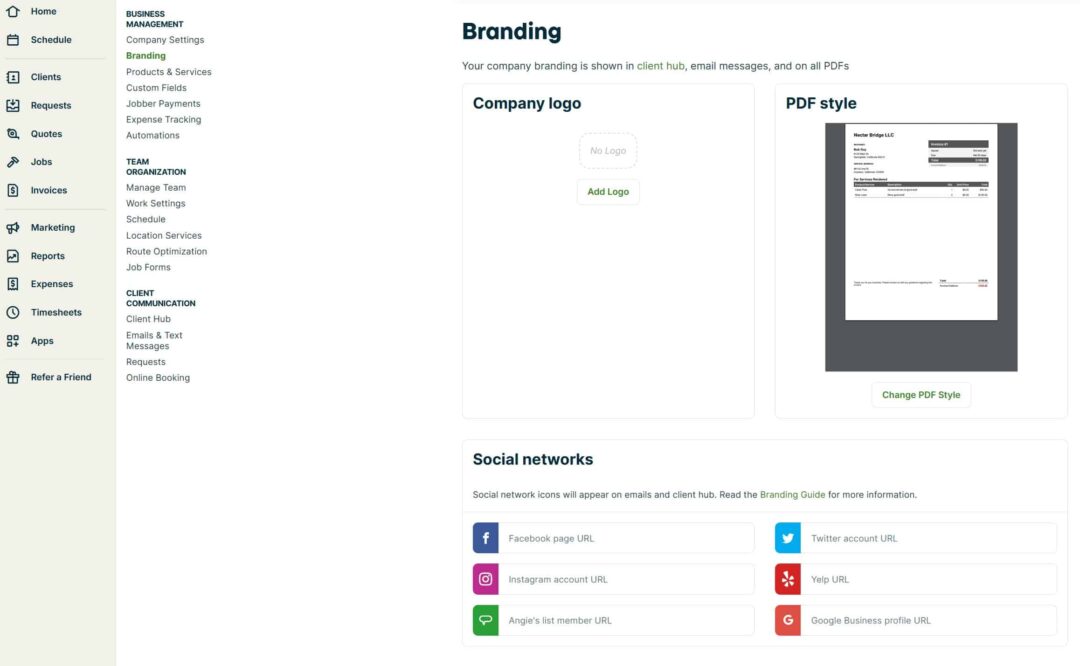
The logo max size is 5 megabytes, and the file must be .jpg or .png image format. It’s a good idea to use a one-color version of your logo with a transparent background, so that if the logo ends up showing up against a different color background it won’t look like a big white square.
When you click the “Add Logo” button it will spawn an uploading dialogue box with an “Upload Logo” box. Once you select a file it will show a preview like this. While it may seem redundant, keep “Show company name as well as logo” checked so that your company name will continue to appear as a searchable text field in your finished invoices.
Choose a PDF style
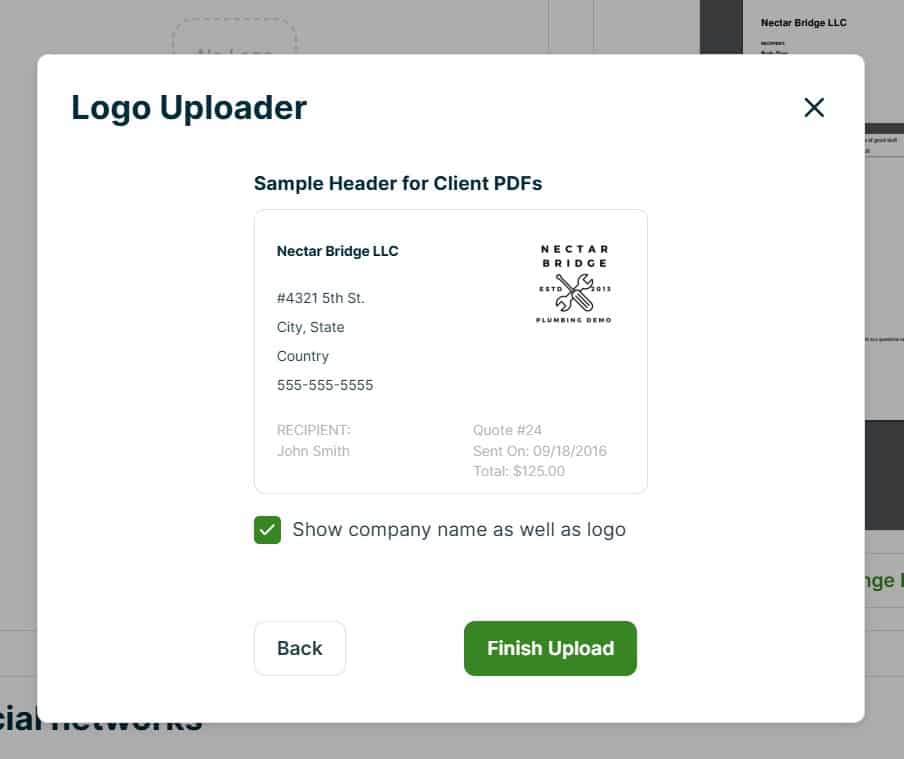
When you come back to the main Branding page, you’ll see your company logo in the box on the left. Notice there is also a “PDF style” box on the right. There is a lot to unpack hidden in this section, such as your business terms and conditions for the footers; we’ll plan to come back to this in a later post. For now, remember that this section includes a number of configuration points for your invoices, in case you need to adjust them before using Jobber CRM.
Add Your Social Networks
Below the Company logo and PDF style blocks, there is an area for you to add your Social Networks URLs. Jobber currently supports Facebook, Instagram, Angi (shown as “Angie’s list” in the field description, because Angi is going through a rebranding), X (shown as Twitter, because no one knows what X is and still hopes it will all blow over), Yelp, and Google Business profile. Note: to get your Google Business Profile listing, search for your business on google maps and go to your business listing. Use the “Share” button in that listing to get the URL to enter here). It’s important to enter any of these you’re active on, because these accounts populate your “Contact Us” information on your Jobber CRM Client Hub (another topic for a future post).
To do all this right takes more than two minutes! Contact us if you have any questions or if we can help you choose and implement home services management software like Jobber CRM.